To keep an image's aspect ratio, scale its width and height by the same factor. The batch image resizer does this for every file in a batch.
Two ways to describe a target size
Tools usually offer two rules, and they answer different questions:
- Fit inside a box ("max 1920 × 1080"): each image is scaled down until it fits, keeping its proportions. A portrait and a landscape both come out correct, at different pixel sizes.
- Percentage ("50%"): every image is multiplied by the same factor. Relative sizes between images stay intact.
For example, a 2400 × 1600 image fits inside a 1200 × 1200 box at 1200 × 800. An 800 × 1200 image already fits and stays at its original size with Don't enlarge enabled. At 50%, those same files become 1200 × 800 and 400 × 600.
For transparent logos and screenshots, use the online PNG resizer to change the dimensions and keep the transparent background.
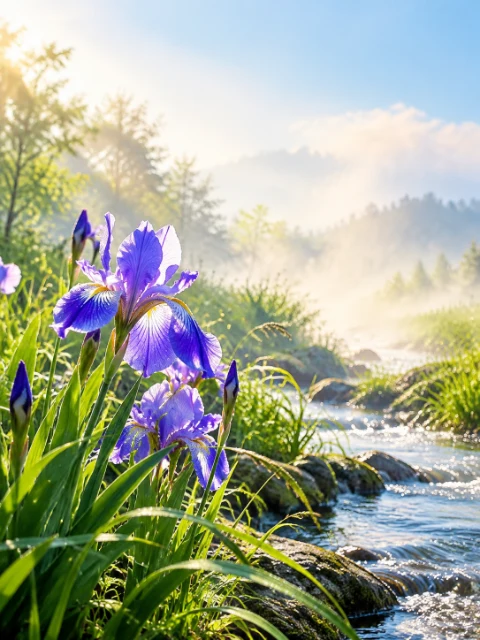 Original PNG
1086 × 1448 px · 2.32 MB
 Resized to 50%
543 × 724 px · 892 KB
Never stretch
Setting an exact width and height on an image with a different aspect ratio stretches it. Faces get wider, circles become ovals. Unless the distortion is the point, always scale proportionally: type one dimension and let the other follow.
How many pixels is enough?
On a normal-density screen, a 1600-pixel-wide image displayed in an 800-pixel column is twice the detail needed. On a high-DPI screen it is exactly right. Practical ceilings:
| Use | Width |
|---|---|
| Article body image | 1200–1600 px |
| Full-width hero | 1920–2560 px |
| Social square | 1080 × 1080 px |
| Story / portrait | 1080 × 1350 px |
| Thumbnail | 320–480 px |
Upscaling does not add detail
Making an image larger interpolates new pixels from existing ones. It looks softer, never sharper, and the file grows. If a 400-pixel logo is being used at 800 pixels, the answer is a vector original, not an upscale.
Good tools therefore default to "don't enlarge" — images already smaller than the target are left alone.
Resize once, from the original
Resizing a resized file compounds softness. Keep the original, generate the sizes you need from it, and let the small versions be disposable.
And once the dimensions are right, compression is the second lever: a correctly sized JPEG at quality 85 is usually smaller than a too-large one at quality 60, and looks better.